
Update the HybridTrader Journal Sync Expert Advisor on Mac
Version 1.06 · MetaTrader 5 · macOS update
HybridTrader Journal Sync · macOS
Version 1.06 · HybridTrader_Journal_Sync_MacOSX.zip
Use this page if you already have an older HybridTrader Journal Sync Expert Advisor on MetaTrader 5 for Mac and need to replace it with the latest Mac build. Save your settings first so your Journal key and panel settings carry over.
Do this first. Open the old Expert Advisor settings and click Save on the Inputs tab. That file keeps your Journal key (MetaTrader calls it API Key). If you remove the old Expert Advisor before saving, you may need to paste your key again by hand.
Mac walkthrough: save settings, remove the old Expert Advisor, unzip in Finder, copy the Mac file through MetaTrader's folder window, load your saved settings, and confirm it is running.
Video not playing? Open or download the walkthrough.
First-time setup? If you have never installed the Expert Advisor on this Mac, use the Mac installation guide instead.
Updating on Windows? Use the Windows update guide.
Before you start
Please check these three things:
- MetaTrader 5 is open on your Mac.
- The chart where the current HybridTrader Journal Sync Expert Advisor is running is open.
- You have not removed the old Expert Advisor yet.
Mac only — correct Expert Advisor file. Use HybridTrader_Journal_Sync_MacOSX.ex5 only. Do not use HybridTrader_Journal_Sync.ex5 from the Windows download.
Step 1 — Save your current settings
This step saves your Journal key and other inputs to a small file on your Mac. You will load that file into the new Expert Advisor later.
- Go to the chart where the HybridTrader Journal Sync Expert Advisor is running.
- Right-click anywhere on the chart.
- Click Expert List.
- Click the HybridTrader Journal Sync Expert Advisor in the list (it may show as HybridTrader_Journal).
- Click Properties.
- Open the Inputs tab.
- Click Save.
- Save the file somewhere easy to find, such as your Desktop or Downloads folder.Suggested name:
HybridTrader_Journal_Sync_Settings.set - Click OK to close the Expert Advisor settings window.
Step 2 — Remove the old Expert Advisor
Only do this after Step 1 is finished and you know where your saved settings file is.
- Right-click on the same chart again.
- Click Expert List.
- Select the old HybridTrader Journal Sync Expert Advisor.
- Click Remove.
- Open the Navigator panel.
- Under Expert Advisors, find the old HybridTrader Journal Sync Expert Advisor.
- Right-click the old Expert Advisor, then click Delete. Confirm if MetaTrader asks.
The old Expert Advisor is now off the chart and removed from the Expert Advisors list. Your saved settings file still has your key.
Step 3 — Download and unzip the Mac file
- Download if you haven't already.
- In Finder, double-click the downloaded
HybridTrader_Journal_Sync_MacOSX.zipfile. Double-clicking is the simplest way to unzip it. - Confirm Finder shows
HybridTrader_Journal_Sync_MacOSX.ex5.
Leave Finder open so you know where the unzipped file is. Most Macs put it in Downloads.
Step 4 — Copy the new file into MetaTrader
Use MetaTrader's folder window for this copy step. First find the unzipped file through the Mac disk folders, then copy it into MetaTrader's Experts folder.
- In MetaTrader 5, click File, then Open Data Folder.
- In the folder window, click the disk marked /.
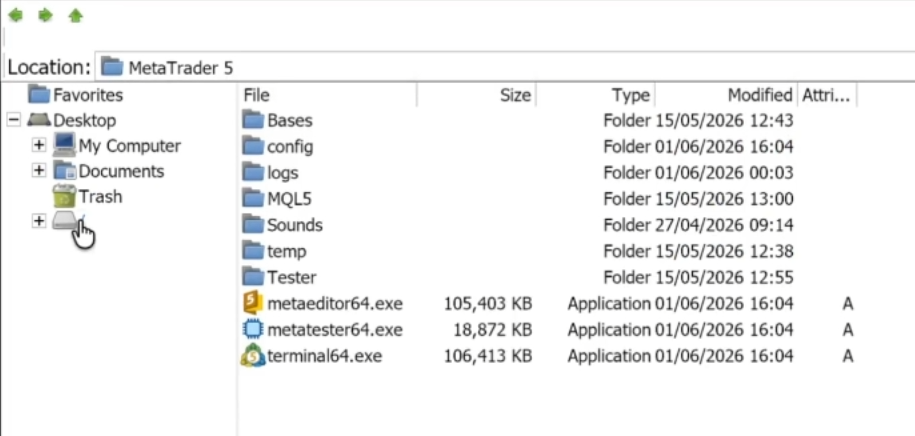
First click the disk marked /. - Double-click the Volumes folder.
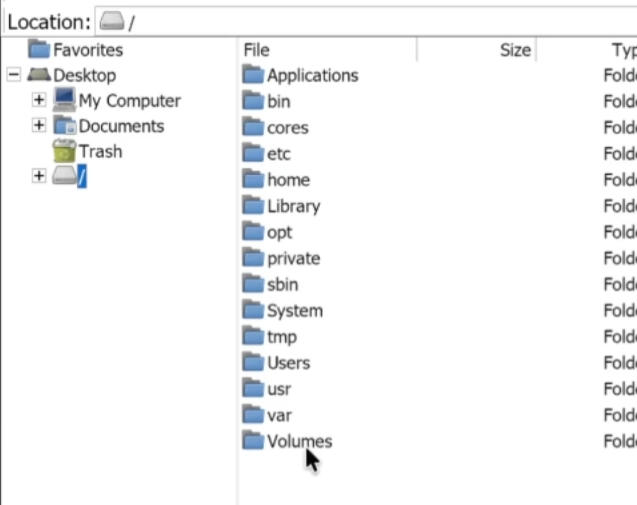
Then open the Volumes folder. - Double-click the Macintosh HD folder.
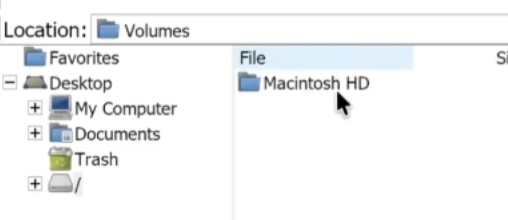
Then open Macintosh HD. - Open the folder with your name.
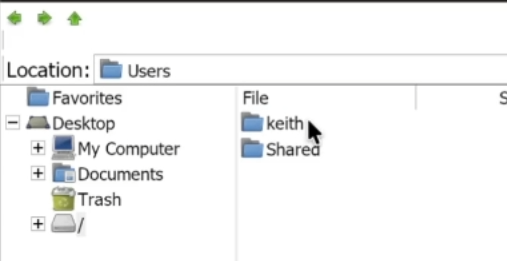
Then open the folder with your name. - Find where you unzipped the file, such as Downloads or Desktop.
- Find
HybridTrader_Journal_Sync_MacOSX.ex5. - Right-click the file, then click Copy.
- Go back to MetaTrader 5, click File, then Open Data Folder again.
- Open MQL5, then Experts.
- Right-click empty space in the Experts folder, then click Paste.
You should now see HybridTrader_Journal_Sync_MacOSX.ex5 inside the Experts folder.
Step 5 — Add the new Expert Advisor to your chart
- In MetaTrader 5, open the Navigator panel.
- Right-click Expert Advisors, then click Refresh.
- Find HybridTrader_Journal_Sync_MacOSX under Expert Advisors.
- Drag the new Expert Advisor onto the chart you want to use.
- The settings window opens. Go to the Inputs tab — do not click OK yet.
Step 6 — Load your saved settings
First, get back to the Inputs tab for the new Expert Advisor:
- If the Expert Advisor settings window is already open, click the Inputs tab.
- If the settings window is not open, right-click the chart, click Expert List, select the new HybridTrader Journal Sync Expert Advisor, click Properties, then open the Inputs tab.
- On the Inputs tab, click Load.
- Choose the settings file you saved in Step 1 — for example
HybridTrader_Journal_Sync_Settings.set. - Click Open or OK in the file picker.
- Check that the API Key field is filled in.
- Click OK to close the settings window.
The new Expert Advisor should now be on your chart with the same key as before.
Step 7 — Final check
Please confirm all of these:
- The Expert Advisor is attached to the chart.
- AutoTrading is turned on in the MetaTrader toolbar.
- The API Key field still shows your key if you open Properties again.
- In Terminal, open the Experts tab. There should be no red error lines. A normal start message looks like HybridTrader Journal Expert Advisor active and monitoring.
If something looks wrong, read the troubleshooting section in the main guide, or contact support with a copy of the Experts tab text.
Quick checklist
All steps in order:
- Open the old Expert Advisor settings → Inputs tab.
- Click Save, remember where the file is, then click OK.
- Remove the old Expert Advisor from the chart and from Expert Advisors in Navigator.
- Download if needed, then double-click
HybridTrader_Journal_Sync_MacOSX.zipin Finder to unzip it. - Copy
HybridTrader_Journal_Sync_MacOSX.ex5into MQL5 → Experts. - Refresh Expert Advisors and drag the new Mac Expert Advisor onto your chart.
- On Inputs, click Load and pick your saved file.
- Check the API Key field is filled in.
- Click OK.
- Turn on AutoTrading and check the Experts tab.
Important notes
- Do not remove the old Expert Advisor before saving. That is the most common mistake.
- Use the Mac file only:
HybridTrader_Journal_Sync_MacOSX.ex5. - If you forgot to save, you can paste your Journal key by hand into the API Key field instead of using Load. Need a key? Use the MT5 Journal key request form.
- You do not need to repeat the one-time Allow WebRequest step unless MetaTrader was fully reinstalled.