
Choosing an MT5 Journal: A Guide to Connection Methods
- HybridTrader Editorial

MetaTrader 5 trade data can flow into your journal through three main methods: Expert Advisor (EA) for live synchronization, direct server connection via API, or periodic CSV import. Each offers different speeds, setup complexity, and suitability depending on whether you need real-time feedback or historical analysis. Hybridtrader supports both MT5 Journal Sync and CSV upload, giving traders a choice between automated syncing and flexible file-based imports. This article compares the three approaches to help you choose the method that fits your workflow and data needs.
Quick answer: which MT5 integration method to choose
EA for live sync captures trades as they close on your MT5 terminal, delivering near-real-time data if your computer stays online. Server connection (API or broker integration) avoids the need for a running terminal and typically offers faster, more reliable data transfer. CSV import works with any platform, requires no setup beyond exporting a file, but introduces a manual step and a time delay between trade execution and journal entry.
Your choice depends on three factors:
- Real-time or delayed data? EA and server connection both offer near-immediate sync. CSV import is manual and asynchronous.
- Setup tolerance? CSV is simplest. EA requires terminal configuration. Server connection may need API keys or broker permissions.
- Continuous uptime needed? EA requires an active MT5 instance. Server connection and CSV do not.
Who each approach may suit
EA for live sync suits traders who trade actively and value immediate feedback on closed trades. It requires a dedicated trading computer that runs consistently during market hours. You'll need comfort configuring or installing an Expert Advisor in MT5. Automated data capture without periodic manual exports is the payoff.
Server connection suits traders who prefer not to run a local terminal continuously.
It delivers reliable, fast data from broker infrastructure. You'll need to generate API keys or grant journal-access permissions to your broker account. Trade across multiple devices or locations and data follows you.
CSV import suits traders who import trades periodically for review rather than requiring live sync. It offers flexibility to clean, verify, or modify data before uploading. Platforms with limited API support aren't a barrier. Setup is the simplest with no ongoing configuration. You're building a historical record from multiple sources or past trading activity? CSV handles that.
What each approach records
All three methods capture the same core trade data: entry price, exit price, size, instrument, and profit/loss. They differ in timing and accessibility.
EA for live sync records trades as they close on the MT5 terminal, capturing closing price, time, and account state at execution. Data lives on your local machine until synced. Availability depends on the terminal being active and connected to the internet.
Server connection captures the same fields but retrieves them directly from the broker's server. Historical data is stored off-device and remains accessible even if your local setup changes. Deeper trade parameters (slippage, commission, swap) may be available depending on the broker's API.
CSV import records whatever fields you include in your export file. You control the data, choosing which trades, which fields, and in what format. This flexibility also means incomplete or misaligned columns can cause import errors, though column matching guidance can reduce that risk.
Comparison table
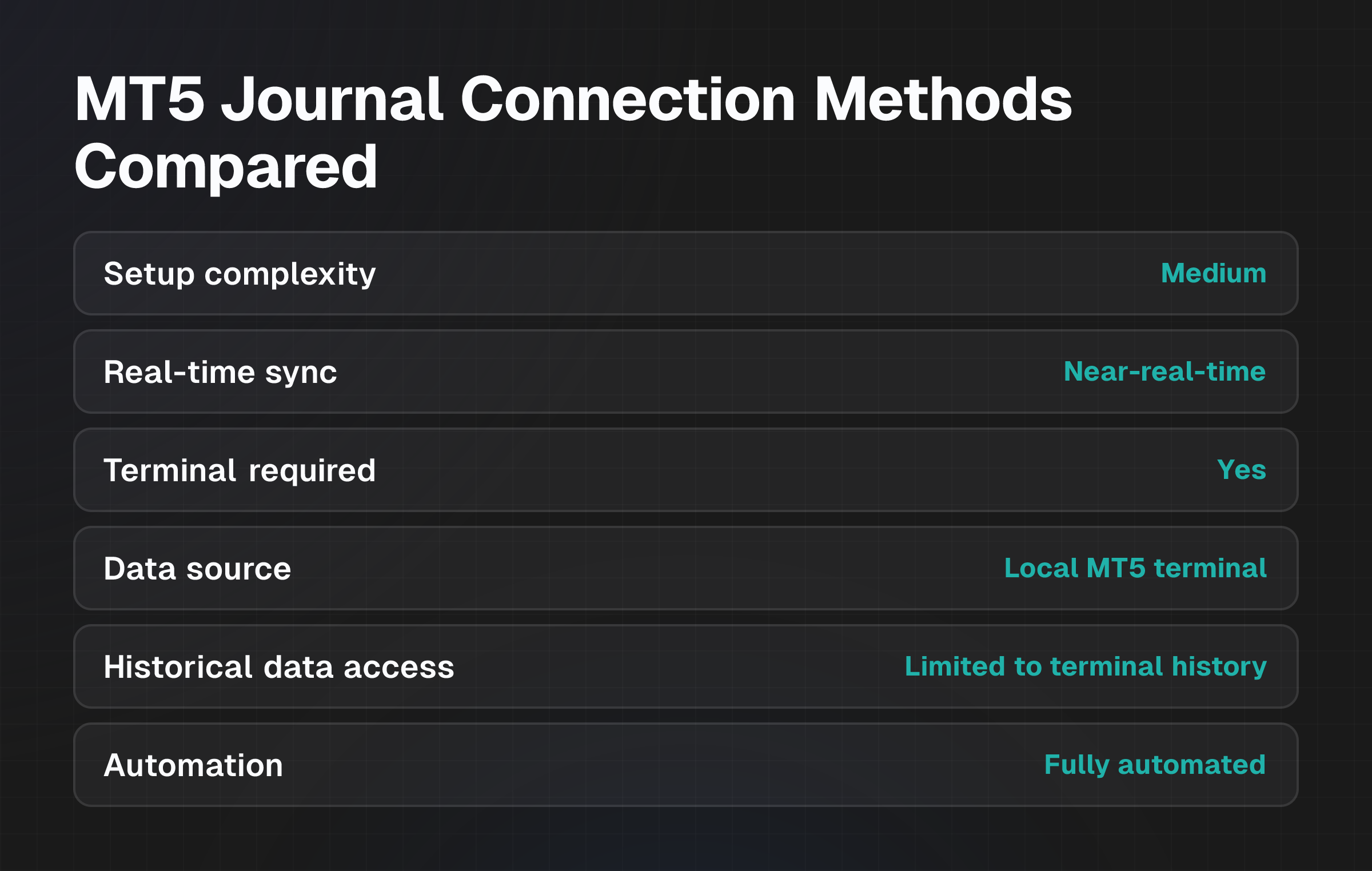
| Criterion | EA for Live Sync | Server Connection | CSV Import |
|---|---|---|---|
| Setup complexity | Medium (requires EA installation and configuration) | Medium to high (API keys, broker permissions) | Low (export, upload, match columns) |
| Real-time sync | Near-real-time (subject to terminal uptime) | Near-real-time to fast | Manual, delayed (periodic export/upload) |
| Terminal required | Yes (must run during trading) | No | No |
| Data source | Local MT5 terminal | Broker server | Your export file |
| Historical data access | Limited to terminal history | Full broker history | Only exported trades |
| Automation | Fully automated after setup | Fully automated after setup | Manual export step required |
| Error recovery | Depends on terminal logs | Depends on broker records | You control data; can re-export and correct |
| Platform compatibility | MT5 only | MT5 and 50+ platforms (where broker supports) | Universal (any platform that exports CSV) |
| Ongoing maintenance | Restart EA if terminal closes | Minimal (refresh tokens if needed) | Minimal (export and upload as needed) |
| Best for | Live trading feedback | Multi-device, high-uptime needs | Retrospective analysis, flexibility |
EA for Live Sync workflow
Obtain or code an EA designed to sync trades to your journal. Install the EA in your MT5 terminal (drag into the Experts folder, compile if needed). Attach the EA to a chart and set permissions (allow DLL imports, network access). The EA monitors closed trades in real time and sends them to the journal via API or file. Your journal receives and records each trade automatically. If the terminal or EA disconnects, syncing pauses until reconnection.
Key dependencies: Terminal uptime, internet connection, correct EA configuration, journal API availability.
Server Connection workflow
Log in to your journal and navigate to MT5 integration settings. Authorize the journal to access your broker account (via OAuth, API key, or broker API portal). The journal requests trade history and ongoing trade data from the broker's server. Trades appear in your journal as they settle on the broker side. Historical trades are retrieved and backfilled. Future trades sync automatically without further action needed.
Key dependencies: Broker API support, correct credentials, unbroken internet connection between journal and broker.
CSV Import workflow
Log in to MT5 and navigate to the Journal or History tab. Select trades you wish to export and save them as a CSV file (via MT5 export function or manual copy to a spreadsheet). Log in to your journal and open the CSV upload tool. Upload the CSV file. The journal parses the file, detects column headers, and offers to match them to its own required fields (e.g., "Entry Price" → "Open"). Review the matches and confirm. Trades are imported and stored. The journal remembers your column mapping for future uploads.
Key dependencies: Correct CSV format, proper column naming or mapping, manual export discipline.
Costs, effort and constraints
EA for live sync
Upfront cost: EA may be free, paid, or require a subscription, depending on the vendor. No ongoing licensing mentioned in available sources.
Effort: Moderate. Installation and permission setup are one-time tasks. Ongoing effort is minimal if stable; restart effort is required if the terminal crashes or network drops.
Constraints: Requires a dedicated or semi-dedicated machine to run MT5 during trading hours. Consumes CPU and memory. Downtime during system updates, internet outages, or terminal crashes stops syncing.
Server connection
Upfront cost: Typically included as part of a journal subscription. Some brokers may charge for API access, though this is rare.
Effort: Low to moderate.
Initial authorization takes minutes. Ongoing effort is minimal; some journals handle token refresh automatically.
Constraints: Depends on broker API availability. Not all brokers or MT5 integrations support server-side sync. Setup requires granting access permissions, which some traders find concerning from a security standpoint. Rate limits or API outages could briefly delay sync.
CSV import
Upfront cost: None beyond your journal subscription.
Effort: Low per cycle, but recurring. Each import cycle requires a manual export step. If you trade daily, this is a small weekly task. If weekly or monthly, effort is minimal.
Constraints: No real-time data. Trades may not appear in your journal until hours or days after execution. Risk of manual error in column mapping, though automated matching reduces this. Works only with trades you explicitly export.
What is difficult or uncertain
EA for live sync
Specific technical details of how different EAs handle connectivity, error recovery, and data integrity aren't standardized. Behavior varies by vendor. An EA can fail silently if permissions are misconfigured or the terminal crashes unexpectedly. Verification that trades synced requires checking both the terminal and the journal. Performance impact on your trading machine is variable and depends on the EA's code efficiency and data volume.
Server connection
Not all brokers offer MT5 API access with the required depth of trade data. Availability and scope of data vary by broker. Security permissions required (API keys, OAuth grants) may require manual management or periodic renewal, depending on the broker's policy. Outages or delays on the broker's API can affect sync speed, though this is typically rare.
CSV import
Column naming conventions differ between platforms. A trade exported from MT5 may not match column names expected by another journal without manual intervention or guided matching. Only trades you export are imported. There's no automatic backfill if you miss an export cycle; you must manually export and re-import to catch up. Data quality depends on the CSV export format from MT5, which can vary by version or broker customization.
Across all methods
No published research is available comparing the effectiveness of these integration methods in improving trading performance or reviewing trading decisions with real data. Method choice depends on workflow preference and technical constraints, not on documented trading outcomes.
Evidence and disclosures
This piece draws on the brand's published materials and verified public sources. Hybridtrader explicitly supports MT5 Journal Sync and CSV upload for trade imports, and also offers broker and platform sync across 50 platforms including MetaTrader 5. Competitor platforms including TraderSync, Tradesea, MRKT, TradesViz, and TradeZella similarly emphasize automated syncing and trade logging as core features, reflecting an industry trend toward reducing manual data entry.
Technical capabilities of each integration method are described based on general industry practice and broker/platform standards. No independent performance testing or benchmarking against other journals is included here.
Claims about improved trading outcomes, higher win rates, or better decision quality aren't made in this article. Neither integration method guarantees such outcomes. The journal's value lies in enabling structured reflection and identifying patterns in your trading data, not in trade prediction or performance assurance. Understanding what an AI trading journal records helps set realistic expectations about integration methods.
For broader context on journal setup workflows, see Day Trading Journal: What to Record, With a Filled-In Example and Best AI Trading Journals for Trade Review: 4 Tools Compared.
Data freshness: facts verified as of 11 November 2026.
Next step
Review your trading workflow to identify which friction point matters most: real-time feedback, setup simplicity, or historical flexibility. If you trade actively and want immediate journal updates, EA or server connection reduce delays. If you review trades retrospectively or trade infrequently, CSV import adds minimal overhead. If your broker supports it, server connection typically offers the best balance of speed, reliability, and uptime independence.
Once you've chosen a method, test it with a small sample of trades to verify the data format matches and columns map correctly before scaling to full import.